Connect & Go – Easy Setup
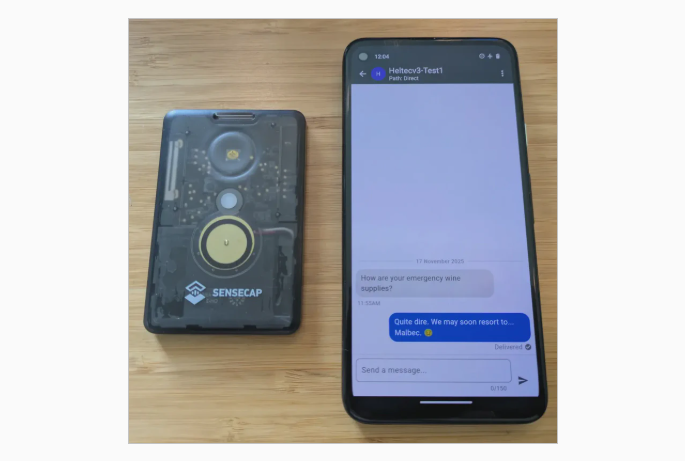
🛈 Meshtastic App & Node Device Connection
– Download the Meshtastic App to your phone
[ Google Play | Apple Store | F-Droid | Others Apps ]
– Pair your node device to your phone’s bluetooth BT
Turn-on your phone’s bluetooth & scan to pair (only has to be done once)
Turn-on the node device (ex. hold the black square button or push-up tiny black switch on the side)
Use the BT CODE shown on the node device screen to pair with your phone
– Open the Meshtastic App & click the Connection icon (5th icon along bottom)
– Choose Bluetooth Tab at top of connection page
– Scan for Paired Devices to choose your “Meshtastic_(your node)”
– Switch to the Nodes Online screen (2nd icon along the bottom)
– Your node will show at the top of the Nodes screen
– Click the sandwich menu on the top right of the Node Online screen and choose “distance” and then green check only the “include unknown” box to start.
Leave your node device running for a while and other online nodes in your area will begin to show-up and listed in order by distance. The other nodes will remain on that list even if they go offline and you can green check the “hide offline nodes” in the sandwich menu to show only active online nodes.
– Your node device is pre-configured to use the Public Channel known as “LongFast”
You can send a public message announcement to the LongFast channel for everyone to see on the Mesh by going to the Conversations screen (1st icon on bottom) and choosing the [0] [ LONG FAST ] channel. Any text message sent here is not private.
– To send a private Direct Message to another node online, go to the Nodes screen and click on an active online node from the list, then scroll down that node’s page, click on “Direct Message” to send a text. Your outgoing message and any reply will show on the Conversations screen (1st icon on bottom).
Testing Node Devices: Pair your phone’s BT to the device and access it in your Meshtastic App. Switch between devices in the app by changing nodes in the Connection screen (5th icon). Send a direct message from one device to another to see how the nodes communicate and respond.
More… Advanced Meshtastic Setups |